TermPicker
TermPicker is a modal dialogue that lists all matched termbase terms and non-translatables for the current segment in a tabular, keyboard-navigable grid. It is useful when TermLens shows many matches and you want a quick overview without the chip layout – or when you want to compare alternative translations side-by-side before committing.
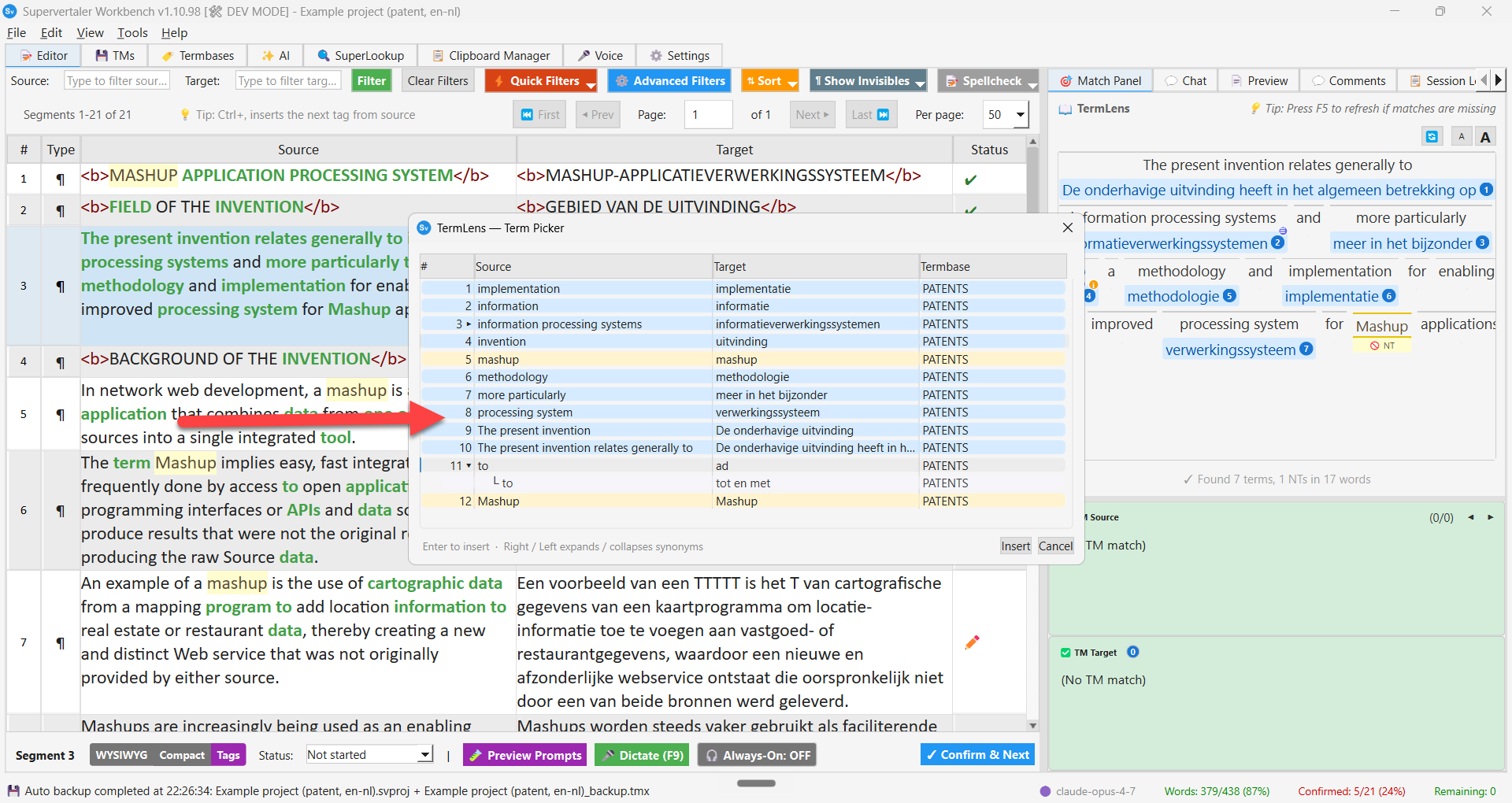
The TermPicker dialogue floating over the editor for the active segment, listing every termbase + NT match in a sortable grid. Row 3 is expanded (▾) to show a synonym sub-row underneath. The docked TermLens panel on the right shows the same matches as chips.
Opening TermPicker
Press Ctrl+Shift+P to open TermPicker. It appears as a modal window above the editor. (P = Picker – matches the Trados plugin and follows the VS Code-style command-palette convention.)
The shortcut is fully remappable via Settings → Keyboard Shortcuts under the term_picker action.
Looking for the lone-Ctrl-tap behaviour? That opens the TermLens popup – a more compact in-context view of the same matches. TermPicker described on this page is the table-based alternative for users who prefer a tabular UI.
Colour-coded rows
Each row is colour-coded by its source:
| Colour | Meaning |
|---|---|
| Pink | Project termbase term |
| Blue | Background termbase term |
| Yellow / amber | Non-translatable term |
| Grey (indented) | Synonym sub-row of the row above |
This lets you instantly see where each term comes from and how it should be handled.
Expandable synonyms
Terms with multiple translations (either target synonyms recorded on a single entry, or multiple termbase entries hitting the same source word) display a right-arrow indicator (▸) next to the row number. To expand and see all alternative sub-rows:
- Select the row and press the Right arrow key
- The sub-rows appear underneath, indented with a
└and shown in grey, one per available translation - The indicator switches to ▾ to show the row is expanded
Press Left arrow to collapse the synonyms again.
Keyboard navigation
TermPicker is designed for fast keyboard use:
| Key | Action |
|---|---|
| 0–9 | Jump to that-numbered row; auto-inserts when ≤ 9 total matches |
| Enter | Insert the selected term and close the picker |
| Esc | Close the picker without inserting |
| Up / Down | Navigate between rows (wraps around) |
| Right | Expand synonyms for the selected row |
| Left | Collapse synonyms (jumps to parent row when on a sub-row) |
Number-key behaviour: when the segment has 9 or fewer matches, pressing a digit selects and inserts the corresponding row in one keystroke. When there are 10 or more matches, the digit only selects the row – press Enter to insert. This guards against unintended auto-inserts when a digit was the first character of a two-digit number you were typing.
Inserting a term
You can insert a term in three ways:
- Double-click any row to insert that term at the cursor position in the target field
- Press Enter on the selected row to insert and close
- Click “Insert” in the dialog footer
The selected translation lands at the current cursor position in the target segment.
Persisted layout
TermPicker remembers your preferred size and column widths between sessions, so once you resize it to fit your screen the layout sticks.
TermPicker shows the same matches as TermLens, but in a flat sortable list format that scales better when there are many results.