Language (UI Translation)
Supervertaler Workbench can display its menus and settings labels in languages other than English. Translations are contributed by the community as XLIFF 1.2 files – the industry-standard interchange format that every CAT tool reads natively.
This page covers:
- How to pick your display language
- Which languages are currently available
- How the translation files work (file location, format)
- How to contribute a translation
Picking your display language
- Open Settings → General → 🌐 Language.
- Use the Display language dropdown to choose a locale.
- Click OK to close Settings.
- Restart Supervertaler for the new language to take effect.

Settings → General → Language dropdown
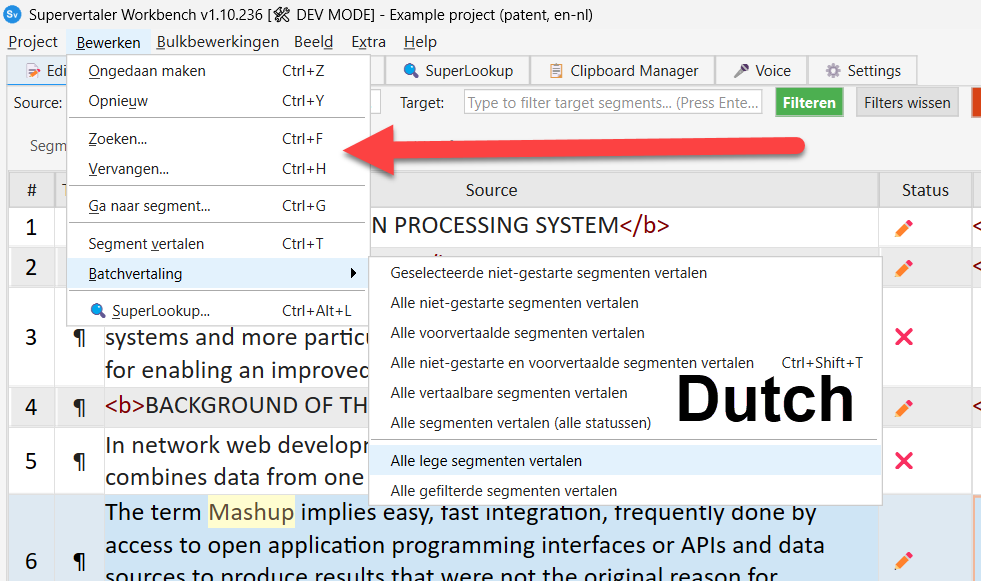
The Workbench interface after picking a locale – here localised to Dutch
Locale options
| Entry | Meaning |
|---|---|
| System default | Use whatever language your operating system reports. Falls back to English if no translation file exists for that locale. |
| English | Source language – no translation file needed. |
Locales with a .xlf file | Use that translation. |
[no translation yet] | Locale code is recognised but no .xlf has been contributed yet. Picking it falls back to English. |
If a locale is partially translated, the strings that have been translated are used; the rest fall through to English. Partial coverage is fine.
Why a restart is required
Most Supervertaler dialogs are hand-coded rather than built with Qt Designer, which means they don’t automatically refresh their text when the language changes mid-session. A restart is the simpler approach for v1; live language switching may come in a future version.
Where the translation files live
Each locale’s translation lives in a single .xlf file in the translations/ folder:
- Installed Windows build: alongside
Supervertaler.exe(open the install folder, findtranslations\) - From source: in the repository root,
translations/ - macOS: inside the
.appbundle atSupervertaler.app/Contents/Resources/translations/
File names follow the pattern supervertaler_<locale>.xlf:
translations/├── supervertaler_template.xlf <- source-only English template (auto-generated)├── supervertaler_zh_CN.xlf <- Simplified Chinese├── supervertaler_zh_TW.xlf <- Traditional Chinese├── supervertaler_pl.xlf <- Polish└── ...You can drop a new locale’s .xlf into this folder manually – the next launch will pick it up and the Language dropdown will offer it. No reinstall, no rebuild.
What’s inside an XLIFF file?
The format is standard XLIFF 1.2 – the same format Workbench imports through Project → Import → Import Document… (using the XLIFF filter). Every CAT tool in regular use reads it natively.
A .xlf file has one entry per translatable string. Each entry looks like this:
<trans-unit id="SupervertalerQt.&Project"> <source>&Project</source> <target state="translated">项目(&P)</target> <context-group purpose="location"> <context context-type="x-qt-context">SupervertalerQt</context> <context context-type="sourcefile">Supervertaler.py</context> <context context-type="linenumber">9698</context> </context-group></trans-unit>What each piece means:
<source>– the original English string. Never edit this.<target>– your translation. Set thestateattribute totranslated(orsigned-off/final) when you’re happy with it. Targets left asstate="needs-translation"are skipped at runtime – Workbench shows the English source instead.<context-group>– where the string appears in the UI. Thex-qt-contextvalue tells you the dialog/class; thesourcefileandlinenumberare pointers into the source code (rarely needed for translation, but handy for troubleshooting).&– XML-escaped&. The character marks the next letter as a keyboard mnemonic –&Editbecomes underlined Edit, activated by Alt+E. Translations should preserve mnemonics, often by putting them in parentheses (编辑(&E)for Chinese).
How to contribute a translation
The whole flow is designed so you can use whichever CAT tool you already work in. No new tooling required.
Quick version
- Grab
translations/supervertaler_template.xlffrom the GitHub repo. - Save a copy as
supervertaler_<your_locale>.xlf(for examplesupervertaler_de.xlffor German). - Open it in your CAT tool (Trados, memoQ, Phrase, OmegaT, or Workbench itself).
- Set the target language on the
<file>element (target-language="de"for German). Most CAT tools do this for you when they ask which target language you’re translating into. - Translate the strings. Mark each as confirmed/translated/approved in your tool – this sets the
state="translated"attribute behind the scenes. - Save / export back to XLIFF.
- Open a PR on the Supervertaler-Workbench repo adding your
.xlffile undertranslations/.
CAT-tool specifics
Workbench itself: Project → Import → Import Document… and choose the generic XLIFF filter (not SDLXLIFF or MQXLIFF). Translate in the editor, then export back via Project → Export → Export Translated Document….
Trados Studio: File → Open → Translate Single Document → select the .xlf. Studio recognises XLIFF 1.2 out of the box. Save Target As to export.
memoQ: Project → Import documents → select the .xlf. Use the standard XLIFF filter.
Phrase TMS: Upload as a regular bilingual file.
OmegaT: Drop into the project’s source/ folder. OmegaT outputs the completed file to target/.
Poedit: Although Poedit is best-known for .po files, recent versions also handle .xlf natively.
Notes for translators
- Mnemonics (
&letter) mark keyboard accelerators. Preserve them in the translation. Place them where the underlined letter feels natural in your language. For Chinese / Japanese / Korean, the convention is to put the mnemonic in parentheses after the term:编辑(&E). - Avoid mnemonic collisions within the same menu. Two items both using
&Swill cause one to silently lose the shortcut. - Emoji (📁 🔍 ⚙️ etc.) stay in the translation – they’re part of the visual identity.
- Newlines (
\n) in source strings should be preserved. - Placeholders like
{0}or%1are not in this MVP’s strings, but if you see one, leave it verbatim.
How translations are picked up
Each launch, Supervertaler:
- Reads
general.ui_localefrom the unifiedsettings.json. - Resolves
"system"to the operating system’s locale via Qt’sQLocale.system(). - Looks for
translations/supervertaler_<locale>.xlfnext to the executable. - Parses the XLIFF, collects all
<trans-unit>entries whose<target>is in a “done” state (translated,signed-off,final, or stateless). - Installs a
QTranslatoron the QApplication so everytr()call resolves through that dictionary. - If the file is missing, the locale has zero finished translations, or the locale is
en/ unknown – English is used silently.
Total cost at startup: about 10 ms. Negligible against the rest of the cold-start.
Troubleshooting
The dropdown shows my locale as [no translation yet] even though I added the file.
Make sure the file:
- Lives in
translations/(next toSupervertaler.exe, or in the source-tree root) - Is named
supervertaler_<locale>.xlfexactly – matching the locale code in the dropdown (case-sensitive) - Is valid XML (a single missing
</tag>will fail the load silently)
The dropdown picks the right locale, but the menu still shows English.
Check that:
- Each
<target>element hasstate="translated"(orsigned-off/final), notstate="needs-translation" - The
<target>actually contains text, not just whitespace - The
<source>text matches the codebase exactly (case, punctuation, spaces, emoji) - You’ve actually restarted Supervertaler
XML parse errors at startup.
Open the .xlf in a text editor. Common causes:
- Unescaped
&in a translation – use&instead - Mismatched
</>in a translation – use<and> - A CAT tool reordered elements in a way Workbench doesn’t expect
Open an issue with the i18n label on the Workbench tracker and attach the failing .xlf.
See also
translations/TRANSLATING.md– the in-repo contributor guide with extra detail- General Settings – the parent Settings tab
- Tracker issues #178 and #190 – the original i18n requests