AutoTagger
AutoTagger looks at where the inline tags sit in the source segment and inserts that same set of tags into your existing translation at the right places – without changing any of the translated words.
It is for the common case where a target has the correct translation but is missing its tags or has them in the wrong spots – typically after machine translation, pasting from another tool, or typing the target by hand. In Trados Studio those segments otherwise trip the tag QA checks even though the wording is fine.
How to use it
With an active segment that has a correct translation but wrong/missing tags:
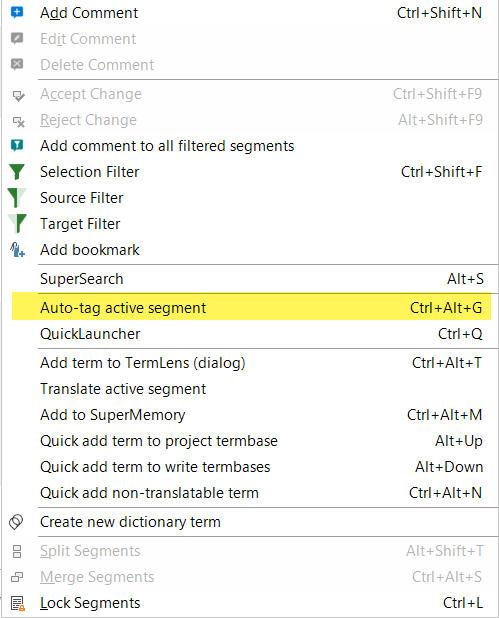
- Right-click in the editor → Auto-tag active segment, or
- Press Ctrl+Alt+G.
Trados Undo (Ctrl+Z) reverts it.
AutoTagger works without opening the Supervertaler Assistant pane, and it never opens that pane – it reads the active segment from the editor and its settings from disk, so it just works without disturbing your layout, even straight after a Trados restart.
How it works
- AutoTagger reads the source segment’s inline tags and your current target text.
- It asks the AI to place that exact set of tags into your translation at the correct positions.
- It validates the result before writing: the tag set must match the source, the words must be unchanged, and the tags must be well-formed.
- It re-inserts the tags into your exact target, so punctuation such as curly quotes is preserved verbatim.
- If the AI’s output doesn’t validate it retries once, and otherwise leaves the segment untouched – so it never writes broken tags.
AutoTagger reuses the same tag engine as Batch Translate, so the tags it writes are real Trados inline tags, not placeholders.
Configuring it
Settings → Prompts → AutoTagger Instruction. This editable field tells the AI how to place the tags. It supports these placeholders:
| Placeholder | Meaning |
|---|---|
{{SOURCE_TEXT}} | The source segment, with its inline tags |
{{TARGET_TEXT}} | Your current translation (tags stripped) |
{{TAG_LIST}} | The list of tags that must be placed |
Tracking cost
AutoTagger’s AI calls are logged under their own “AutoTagger” task in Token Usage & Costs, with token counts and cost like every other AI call.
Notes
- v1 is single-segment. A batch mode may follow.
- Shortcut: Ctrl+Alt+G triggers AutoTagger. The floating TermLens popup opens with Alt+L; you can reassign it in Trados’ keyboard settings if you like.
- AutoTagger mirrors the AutoTagger feature in Supervertaler Workbench.