Import/Export
The Import/Export tab in the Supervertaler Assistant panel exports the active Trados document’s segments to a proofreader-friendly file (Word DOCX, Bilingual Text, or HTML), then re-imports the proofreader’s edits back into Trados with a confirmation diff.
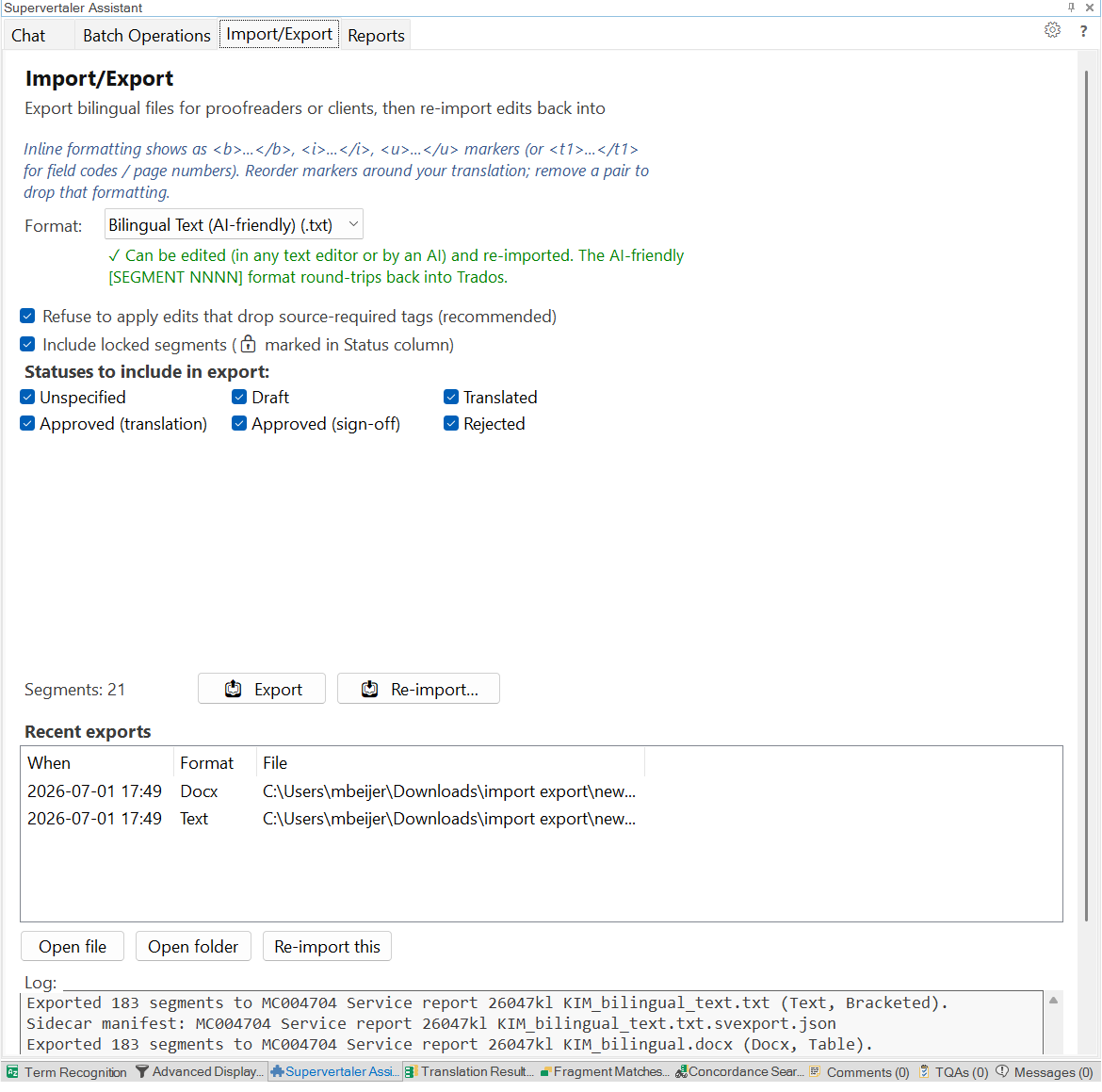
This is the workflow you’d use for:
- External review – send a bilingual DOCX to a colleague who doesn’t have Trados, get it back with edits, apply.
- Quick AI proofreading via web LLM – copy the bilingual text into ChatGPT/Claude/Gemini, paste the corrected version back, re-import.
- Multi-file project review – export every file in a merged project into one combined DOCX with section breaks between each source file.
Formats
The export offers three formats, matching the Supervertaler Workbench:
| Format | Re-importable | When to use |
|---|---|---|
| Word document (.docx) | ✅ | The default. A 5-column bilingual table (#, source, target, status, notes) the proofreader edits in Word. Identical to the Workbench’s Bilingual Table, so files move between both products. |
| Bilingual Text (AI-friendly) (.txt) | ✅ | A compact plain-text format – one block per segment – ideal for pasting into ChatGPT / Claude / Gemini or editing in any text editor. Identical to the Workbench’s Bilingual Text. |
| HTML report (.html) | ❌ | Client-facing read-only report. Cannot be re-imported. |
There’s no separate “layout” picker: each format has one shape – DOCX and HTML use the 5-column table, and Bilingual Text uses the bracketed [SEGMENT NNNN] blocks below.
The Bilingual Text format
Each segment is one block, blank-line separated, with 2-letter language codes labelling the source and target lines:
[SEGMENT 0001]EN: <b>MASHUP APPLICATION PROCESSING SYSTEM</b>NL: <b>MASHUP-APPLICATIEVERWERKINGSSYSTEEM</b>
[SEGMENT 0002]EN: <b>FIELD OF THE INVENTION</b>NL: <b>GEBIED VAN DE UITVINDING</b>- The
EN:line is the source – leave it alone. It stays on one line; a[newline]token in it marks where the original source broke across two lines (read-only reference, never written back). - The
NL:line is the target – edit it freely, but keep it on one line. Where the target needs a hard line break (e.g. to split a subtitle across two lines), write the literal token[newline]; on re-import it’s turned back into a real break. Older files that wrapped a field over several physical lines still re-import unchanged. - The
[SEGMENT NNNN]markers are the alignment anchors – don’t rename them.
Because each field is one labelled line (not a table column), it survives pipe characters and long inputs without the source/target roles getting confused, and keeping targets to one line stops an LLM from accidentally reflowing them. This matches the Workbench’s Bilingual Text export byte-for-byte, so a file produced by either tool round-trips through the other.
Inline formatting markers
Source and target cells use semantic placeholders for inline formatting so the proofreader can move them around without breaking Trados:
<b>...</b>– bold pair<i>...</i>– italic pair<u>...</u>– underline pair<bi>...</bi>– bold + italic pair<t1>...</t1>,<t2/>, … – numbered placeholders for everything else (field codes, page numbers, custom format pairs)
In the DOCX, the markers render in red and the text between a semantic pair is shown in matching bold / italic / underline so the proofreader can see what the formatting will look like.
Round-trip rules:
- Semantic markers (
<b>/<i>/<u>/<bi>) can be freely added, removed, or reordered in the target – they only affect cosmetic rendering and don’t drive Trados QA. - Numbered structural markers (
<t1>,<t2/>, …) must round-trip exactly. Adding a<t1>the source doesn’t have, or dropping one the source requires, would break the Trados file. The importer counts numbered markers on both sides and skips any segment whose count has changed (with a per-segment log entry).
The “Refuse to apply edits that drop source-required tags” checkbox enables this strict check. Leave it on unless you know what you’re doing.
Multi-file projects
When the active Trados editor view contains more than one file merged (common when the Trados project was prepared with file merging), the tab grows extra controls:
Files to export
A checkbox list of every file in the active document, each with its segment count. Quick-select buttons:
- Active only – checks only the file your cursor is currently in
- All – checks every file
- None – unchecks every file (Segments: 0)
The Segments: N label tracks the current selection live.
Output mode
- Combine into one file (default) – produces a single bilingual file containing all selected files joined together, with a file-boundary marker between each source file so the proofreader can see where one file ends and the next begins. In a DOCX the table grows a 6th File column with a highlighted ”📄 File:
<name>” section-break row; in a Bilingual Text file a📄 File: <name>marker line prefaces each new file’s first segment. - Separate file per file – asks for a folder and writes one bilingual file per selected source file.
Single-file documents see no change – the file list, output radio, and per-file UI are all hidden. (On re-import, the DOCX table’s 5- vs 6-column form is auto-detected.)
Locked segments
Trados segments can be locked (read-only in the editor) independently of their confirmation level – so a segment can be both ApprovedTranslation and locked, or Draft and locked. On large projects with a lot of locked-approved content, sending those segments to a proofreader is usually noise: any edits they make there can’t be written back to Trados anyway.
A dedicated checkbox controls how the export handles them:
Include locked segments (🔒 marked in Status column) – default ON.
- ON (default) – locked segments are exported alongside everything else, and every locked row gets a 🔒 prefix in the Status column (e.g.
🔒 ApprovedTranslation). The proofreader can see at a glance which rows aren’t editable round-trippable, and the re-import will refuse to overwrite them. - OFF – locked segments are skipped entirely. The exported file only contains rows that are actually still editable. Useful on multi-thousand-segment projects where the bulk of the work is already locked.
The checkbox lives right under the “Refuse to apply edits that drop source-required tags” option on the tab.
On re-import, locked segments are honoured regardless of the export-side setting: edits made to a locked row are reported as a locked-segment item in the re-import summary’s “other issues” count, and not written back to Trados. To genuinely change a locked segment, unlock it in Trados first, then re-import.
The locked flag also lives in the sidecar manifest (is_locked: true / false per segment) so the source of truth for which segments were locked at export time is preserved.
Filtering by confirmation status
Just below the locked-segments option is a Statuses to include in export group of six checkboxes – one per Trados confirmation level:
- Unspecified – not yet translated (the initial state of a fresh segment)
- Draft – in progress
- Translated – confirmed by the translator
- Approved (translation) – first-pass approval
- Approved (sign-off) – final approval
- Rejected – marked for rework
All six are checked by default – no filter, every segment is included. Untick any subset to narrow the export to just those statuses. Common use-cases:
- Tick only Translated – send a draft pass to a proofreader.
- Tick only Approved (translation) – send near-final material out for a sign-off review.
- Untick Approved (sign-off) – exclude locked-down rows the client has already signed off on, so the proofreader only sees what’s still in play.
- Tick only Draft + Unspecified – generate a worklist of what’s still unfinished.
This filter composes orthogonally with the Include locked segments option and the multi-file Files to export list – every segment must pass all three filters to make it into the bilingual file.
Re-import workflow
Click 📥 Re-import…, pick the round-tripped file. Supervertaler:
- Loads the file’s sidecar manifest (the
.svexport.jsonwritten alongside the export). - For each row in the file, looks up the matching segment in Trados via the manifest’s
(ParagraphUnitId, SegmentId)mapping. - Compares the file’s target text against the current Trados target – same serialisation pipeline on both sides, so only real edits register as changes.
- Counts up: changes to apply, unchanged, tag-mismatch (will be skipped under strict mode), and other issues (segment missing, locked, source text was tampered with).
- Shows you a summary dialog with OK / Cancel.
Click OK and Supervertaler writes the accepted changes back via the same code path the batch AI translator uses – confirmation level is preserved, and locked segments are skipped automatically (the writeback queries IsLocked on every segment, so a lock toggled in Trados between export and re-import is also respected).
Recent exports
At the bottom of the tab, a list tracks every export from this session with:
- Open file – opens the bilingual file in its default app
- Open folder – opens the containing folder
- Re-import this – same as the main Re-import button, pre-pointed at this file
Sidecar manifest
Every export writes a small .svexport.json file alongside the bilingual file. It contains:
- Project name, source filename, language pair, export timestamp, tool version
- Per-segment
(number → ParagraphUnitId / SegmentId)mapping - A SHA-256 prefix of the source text for tamper detection
- For multi-file exports: per-segment source file id + name
- Per-segment
is_locked: true | falseflag (snapshot at export time)
The manifest is what lets re-import find the exact Trados segments even if the proofreader accidentally reorders rows. If the manifest goes missing, re-import falls back to current-document mapping (which loses source-tamper protection but still works).
See Also
- Batch Operations – for AI-driven proofreading directly in Trados
- AI Proofreader – in-Trados proofreading mode