Voice Commands
Control Trados Studio hands-free with spoken commands: confirm segments, navigate, insert TermLens matches, apply translation results, add terms and more – without touching your keyboard. Designed to pair with dictation tools such as Wispr Flow or Dragon: they type your translation, Supervertaler handles the commands.
Starting and stopping
Two ways to toggle voice commands:
- Click the 🎤 microphone button in the TermLens panel header (next to the ↻ refresh button)
- Press Ctrl+Alt+D (also available in the editor right-click menu)
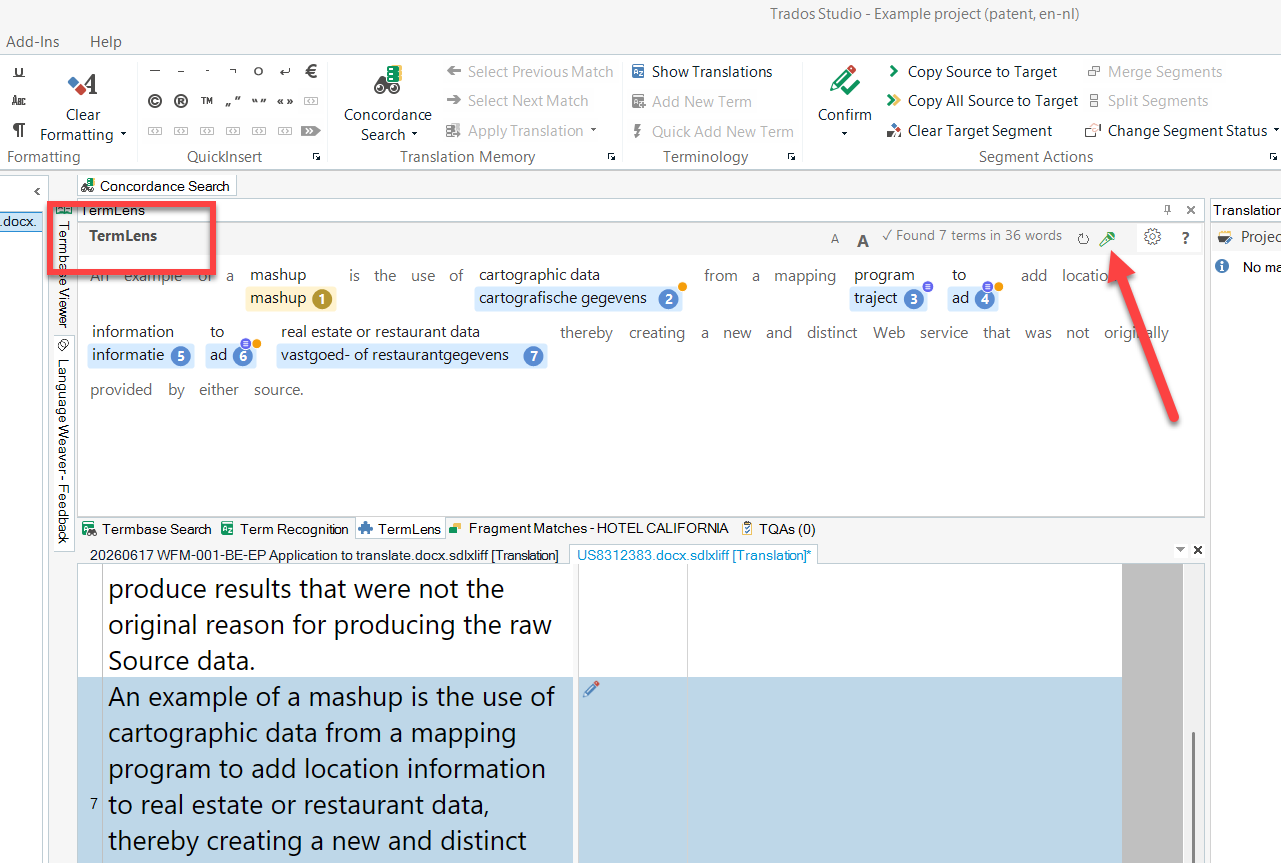
The microphone button shows the state at a glance:
| Colour | Meaning |
|---|---|
| Grey | Off – click to start |
| Orange | Starting (or downloading the voice runtime on first use) |
| Green | Listening |
Each command you speak flashes briefly in the TermLens status label (e.g. 🎤 "confirm"), so you always know what was heard.
If the TermLens panel isn’t open, a small floating status strip appears instead (bottom-right). You can drag it anywhere – the position is remembered.
Default commands
Everything works out of the box – no configuration needed. Most commands also respond to an alias, so you can use whichever phrasing comes naturally:
| Say | Or | Action |
|---|---|---|
| ”select …" | "choose …” | Select those words in the target – see Dictation |
| ”delete that" | "delete this”, “remove that” | Delete whatever is selected in the target |
| ”undo that" | "scratch that”, “undo” | Undo the last change (Ctrl+Z) |
| “dictate" | "stop now” | Hand over to an external dictation tool and take it back (off by default – see Dictation) |
| “confirm" | "confirm segment” | Confirm segment and move to next unconfirmed |
| ”next segment" | "go down” | Move to the next segment (without confirming) |
| “previous segment" | "go up” | Move to the previous segment |
| ”go to the top" | "go to top” | Jump to the first segment (Ctrl+Home) |
| “go to the bottom" | "go to bottom” | Jump to the last segment (Ctrl+End) |
| “copy source" | "copy from source” | Copy source to target |
| ”clear target” | Clear the target segment | |
| ”term one” … “term nine” | Insert TermLens match 1–9 (with capitalisation adaptation) | |
| “match one” … “match nine” | Apply Translation Results match 1–9 (Ctrl+1–9) | |
| “term picker" | "pick term” | Open TermPicker |
| ”term popup" | "show terms” | Open the TermLens popup |
| ”add term" | "new term” | Quick-add the selection to your write termbases (Alt+Down) |
| “add project term" | "project term” | Quick-add the selection to the project termbase (Alt+Up) |
| “translate" | "translate segment” | AI-translate the active segment |
| ”concordance" | "search memory” | Concordance search on the selection (F3) |
| “zoom in" | "bigger font” | Increase the editor font size (see setup below) |
| “zoom out" | "smaller font” | Decrease the editor font size (see setup below) |
| “escape" | "close window” | Close the focused popup or dialog |
| ”stop listening" | "voice off” | Turn voice commands off |
One-time setup for “zoom in” / “zoom out”
Trados Studio’s font-size actions ship without a default keyboard shortcut, so these two commands need a one-time binding:
- Go to File > Options > Keyboard Shortcuts > Editor
- Scroll down to the actions named simply Increase and Decrease (note: the Keyboard Shortcuts page has no search box – you have to scroll)
- Set Increase to
Ctrl+Alt+PgUpand Decrease toCtrl+Alt+PgDn - Click OK
From then on, “zoom in” and “zoom out” control the editor font size hands-free. (Make sure Adapt font sizes is enabled under File > Options > Editor > Font Adaptation.)
Safety and privacy
- Fully offline – recognition runs locally on your machine (Vosk engine); no audio is ever sent anywhere.
- Grammar-constrained – the recogniser listens only for your command phrases, which is what makes commands fast and reliable. Normal speech and dictation are ignored.
- Foreground guard – commands only execute while Trados Studio is the active window. Speaking in another app can’t trigger anything (“stop listening” is the one exception – it always works).
Customising commands
Right-click the 🎤 button (or click ⚙ on the floating strip) to open the Voice command settings dialog (also reachable via the ? in its title bar and F1 for this help page):
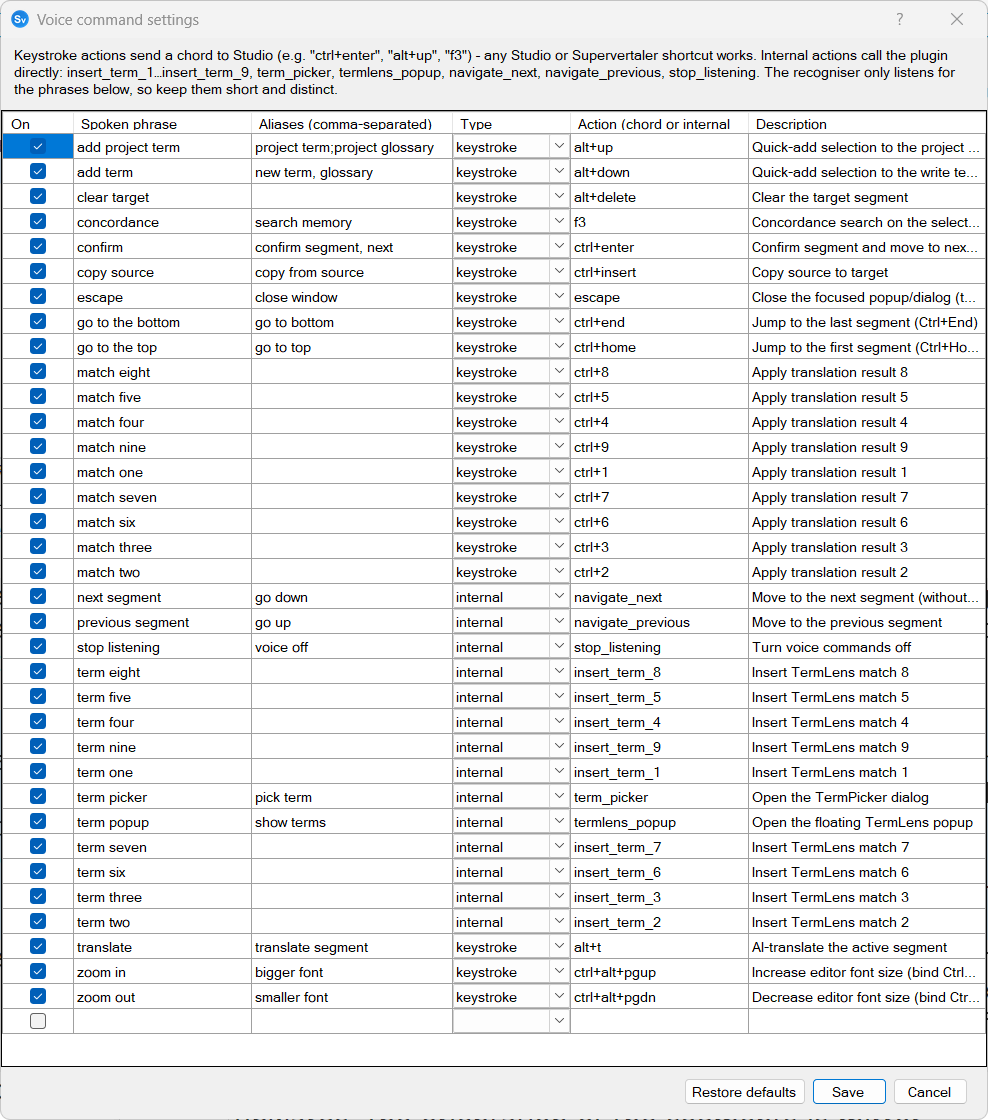
- Enable/disable individual commands
- Edit spoken phrases and add aliases
- Add your own commands, mapped to either:
- a keystroke chord sent to Studio (e.g.
ctrl+enter,alt+up,f3) – any Studio or Supervertaler shortcut works - an internal plugin action:
insert_term_1…insert_term_9,term_picker,termlens_popup,navigate_next,navigate_previous,stop_listening,select_phrase,delete_selection,dictate_toggle
- a keystroke chord sent to Studio (e.g.
A phrase containing {phrase} – as in select {phrase} – takes the words you say after it as its argument, rather than matching exactly. Only select_phrase uses this.
Choosing words for a command
The recogniser works from a closed vocabulary: your command phrases, plus the words of the segment you are in. It has no option to return nothing, so it always picks the best match from that list – which means every word you add competes for that sound in every segment, including against the words of your own translation.
The number of commands barely matters: a long list of distinctive phrases costs nothing. What costs you is a single command built from a short, everyday word.
- Prefer distinctive words. “insert tracked change” is free. A command called “to” or “for” is expensive, because it competes with those words wherever they appear in your text.
- Untick what you do not use. Disabled commands are removed from the vocabulary entirely, so turning off the “term …” or “match …” numbers you never reach makes the rest more reliable.
- Watch for one word that will not select. If selecting a particular word keeps failing, the cause is usually a command phrase that sounds like it.
Homophones are the trap, not spelling. The built-in “term eight” and “match eight” commands put eight into the vocabulary of every segment, and eight sounds exactly like the article a – so for a while, “select a further” could not be made to work at all. Supervertaler now resolves the number words that have common homophones (a/eight, to/two, for/four, one/won) back to the word your segment actually contains, but a custom command can reintroduce the problem with a different word.
Commands are stored in trados/settings/voice_commands.json in your Supervertaler data folder, in the same format as Supervertaler Workbench’s voice commands – so you can exchange command sets between the two products.
Default commands added in plugin updates are merged into your saved set automatically – your customisations are never touched. Because of this, if you want to get rid of a default command, untick it rather than delete it (a deleted phrase would come back if a later update re-ships it). Restore defaults replaces everything with the built-in set, discarding your customisations.
Troubleshooting
- “Voice commands could not start” – check that a microphone is available in Windows sound settings, and that the first-run download completed (an interrupted download can be retried by simply starting voice commands again).
- A command isn’t recognised – speak the phrase on its own, at normal pace. If a phrase never triggers, give it a more distinctive alias in Voice command settings.
- Corrupt model – delete the
trados/voice/modelsfolder in your Supervertaler data folder; the next activation re-downloads it.