QuickLauncher
QuickLauncher gives you one-click access to your most-used AI prompts directly from the Trados editor, without switching panels or typing anything.
How it works
- Right-click anywhere in the editor (or press
Alt+Q) - Click QuickLauncher in the context menu
- Select a prompt from the list
- The prompt is filled in with the current segment context and submitted to the Supervertaler Assistant chat
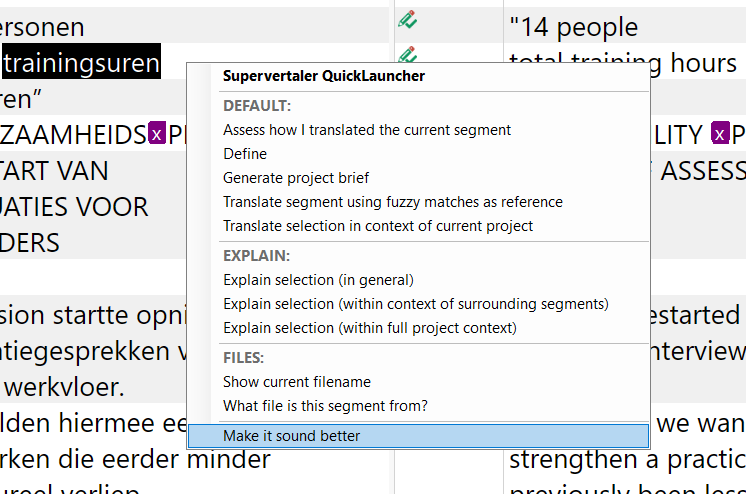
The QuickLauncher context menu with folder sections and keyboard shortcuts.
The expanded prompt appears as a user message bubble in the Supervertaler chat panel, and the AI response follows immediately below it. The conversation continues from there – you can ask follow-up questions in the chat input as normal.
QuickLauncher vs Translate Active Segment (Alt+T)
These are two different pipelines, and the difference matters:
- Translate active segment (
Alt+T) runs through the Batch Translate pipeline: it uses the prompt currently selected in the Batch Translate tab, plus the same provider, termbase terms, document context and SuperMemory context as a batch run, and writes the result straight into the target cell. (Document and SuperMemory context from v18/19.20.149 – before that, single segments were sent without context, which made them translate noticeably worse than a batch.) - QuickLauncher runs through the Assistant chat: it fills in whichever prompt template you assigned to the slot and shows the answer in the chat panel. What context the AI sees depends entirely on the template – surrounding text only if it contains
{{SURROUNDING_SEGMENTS}}, the whole document only if it contains{{PROJECT}}, and so on (see the variables below).
If your goal is simply “translate this segment the way a batch would”, use Alt+T. Use QuickLauncher when you want a custom prompt’s behaviour – explaining a term, assessing a translation, or translating with special instructions of your own.
Keyboard shortcut
| Shortcut (Windows) | Shortcut (Mac) | Action |
|---|---|---|
Alt+Q | Option+Q | Open QuickLauncher prompt menu |
Prompt variables
QuickLauncher prompts have access to the full segment and project context at the moment you trigger them.
Language variables
| Variable | Replaced with | Example |
|---|---|---|
{{SOURCE_LANGUAGE}} | Source language name, including locale | Dutch (Belgium) |
{{TARGET_LANGUAGE}} | Target language name, including locale | English (United States) |
Segment variables
| Variable | Replaced with | Example |
|---|---|---|
{{SOURCE_SEGMENT}} | Full text of the active source segment | De uitvinding heeft betrekking op... |
{{TARGET_SEGMENT}} | Full text of the active target segment (your translation so far) | The invention relates to... |
{{SELECTION}} | Text currently selected in the editor | werkwijze |
Project variables
| Variable | Replaced with |
|---|---|
{{PROJECT_NAME}} | Trados project name (e.g. Patent_NL_EN_2026) |
{{DOCUMENT_NAME}} | Active file name (e.g. source_document.docx) |
{{SURROUNDING_SEGMENTS}} | N source segments before and after the active segment, with their actual Trados segment numbers and the active segment marked ← ACTIVE |
{{PROJECT}} | All source segments in the active document, numbered with their actual Trados segment numbers |
{{TM_MATCHES}} | Translation memory fuzzy matches (≥70%) for the active segment, showing match percentage, source, and target text |
{{SURROUNDING_SEGMENTS}} example output (with N = 2):
[11] Vorige zin hier.[12] Nog een vorige zin.[13 ← ACTIVE] De uitvinding heeft betrekking op een nieuwe werkwijze...[14] Volgende zin hier.[15] Nog een volgende zin.{{PROJECT}} example output (single-file project):
[1] De uitvinding heeft betrekking op een nieuwe werkwijze...[2] De conclusies omvatten de volgende kenmerken...[3] ...In a multi-file project, a file header is inserted at each boundary (because Trados restarts segment numbering per file):
=== File 1 ===[1] Conclusie 1 omvat...[2] Conclusie 2 omvat...
=== File 2 ===[1] De beschrijving begint hier...Example: explain a selected term
Select a word in the source segment, press Alt+Q, and choose a prompt like this:
The user is translating from {{SOURCE_LANGUAGE}} to {{TARGET_LANGUAGE}}.The selected term is: {{SELECTION}}
Explain what this term means and suggest the best {{TARGET_LANGUAGE}} equivalent,considering the full segment context below:
{{SOURCE_SEGMENT}}
Example: assess the current translation
Source ({{SOURCE_LANGUAGE}}):{{SOURCE_SEGMENT}}
My translation ({{TARGET_LANGUAGE}}):{{TARGET_SEGMENT}}
Assess how I translated the current segment. Point out any inaccuracies,awkward phrasing, or terminology issues, and suggest improvements.
Example: translate a selected term using surrounding context
Uses {{SELECTION}} together with {{SURROUNDING_SEGMENTS}} so the AI sees the passage around the active segment, not just the active segment itself:
I am translating a {{SOURCE_LANGUAGE}} patent into {{TARGET_LANGUAGE}}.
The selected term is: {{SELECTION}}
Here is the passage surrounding the active segment for context:
{{SURROUNDING_SEGMENTS}}
Suggest the best {{TARGET_LANGUAGE}} translation for "{{SELECTION}}" given thesurrounding context. Give a brief explanation of your reasoning.
Example: full-document term query
Uses {{PROJECT}} to give the AI the complete source text. Reserve this for high-stakes queries where full document context matters, such as a key term that appears in multiple places with different nuances:
I am translating a {{SOURCE_LANGUAGE}} patent ({{DOCUMENT_NAME}}) into {{TARGET_LANGUAGE}}.Project: {{PROJECT_NAME}}
Here is the complete source text, segment by segment:
{{PROJECT}}
Throughout this document, what is the most accurate and consistent {{TARGET_LANGUAGE}}translation for "{{SELECTION}}"? Consider all occurrences in context and note anyvariation in meaning between them.
Example: check specific segments by number
After using {{PROJECT}} the AI knows the segment numbers, so you can follow up in the chat – or build a prompt that asks about specific segments from the start:
I am translating a {{SOURCE_LANGUAGE}} patent into {{TARGET_LANGUAGE}}.
Here is the source document:
{{PROJECT}}
My translations so far:- Segment 1: [paste your translation here]- Segment 4: [paste your translation here]
Do you think these translations are accurate and consistent with the terminologyused elsewhere in the document?
Example: translate using TM fuzzy matches
Uses {{TM_MATCHES}} to give the AI any high fuzzy matches from the translation memory, so it can leverage existing translations as a starting point:
Translate the following segment from {{SOURCE_LANGUAGE}} to {{TARGET_LANGUAGE}}.
Source:{{SOURCE_SEGMENT}}
Here are fuzzy matches from my translation memory:{{TM_MATCHES}}
Use the fuzzy matches as reference where helpful, but produce an accuratetranslation of the source segment – do not simply copy a fuzzy match.The plugin fills in all variables and sends the expanded prompt straight to the AI.
Folder display mode
By default, subfolders in the QuickLauncher menu appear as expandable submenus (hover to open). You can change any folder to display as a flat section instead – its prompts appear directly in the main menu under a bold header, with separators between sections.
To toggle the display mode:
- Open Settings → Prompts
- Right-click a QuickLauncher folder in the tree
- Click Show as section in menu (a checkmark indicates the current state)
This setting is per-folder, so you can mix styles – for example, keep a large folder as an expandable submenu while showing a small one as a flat section.
Setting up QuickLauncher prompts
Set category: QuickLauncher in the YAML frontmatter, or place the file in a folder called QuickLauncher inside your prompt_library. See Prompts → Marking a prompt as a QuickLauncher shortcut for full details.
Shared with Supervertaler for memoQ
QuickLauncher prompts live in the shared prompt_library folder used by both Supervertaler for Trados and Supervertaler for memoQ. Any prompt you create in one application is immediately available in the other.
YAML reference
If you prefer editing prompt files directly, the relevant frontmatter fields are:
---name: Explain selected termcategory: QuickLauncherquicklauncher_modes: [assistant, clipboard]default_mode: assistant---quicklauncher_modes:– accepts an inline list[assistant, clipboard]or a comma-separated stringassistant, clipboard. Unknown values are silently dropped. When omitted, defaults to[assistant].default_mode:– which mode appears first in the submenu when both are configured. Must be one of the values inquicklauncher_modes. Defaults toassistant.