Batch Operations
The Batch Operations tab in the Supervertaler Assistant panel provides two AI-powered modes for processing multiple segments at once:
| Mode | Description |
|---|---|
| Batch Translate | Translate segments using AI with customisable prompts |
| AI Proofreader | Check translations for errors, inconsistencies, and style issues |
Switch between modes using the Mode dropdown at the top of the Batch Operations tab.
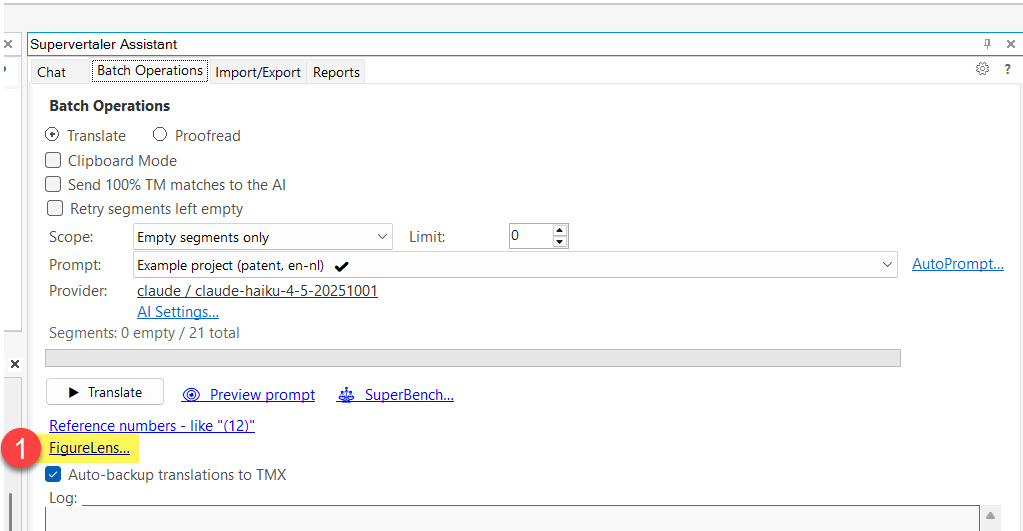
Both modes share the same prompt selector, provider/model configuration, and scope options. Prompts are filtered by mode – Translate prompts appear in Translate mode, Proofread prompts appear in Proofread mode. You can click the provider/model label to quickly switch AI models via a flyout menu – the same menu available in the Chat tab.
Clipboard Mode
Both Translate and Proofread modes support Clipboard Mode – an alternative workflow that lets you use any web-based AI (ChatGPT, Claude, Gemini, etc.) without an API key. Tick the Clipboard Mode checkbox to switch from API-based processing to a manual copy/paste workflow. See Clipboard Mode for full details.
Preview prompt
Next to the action button, the 👁 Preview prompt link opens a read-only dialog showing exactly what would be sent to the AI for the current configuration: the assembled system prompt (including the active custom prompt, termbase entries, language-specific checks, and the full bilingual document context for proofread), followed by the numbered segment list. No LLM call is made.
This is useful for:
- Sanity-checking before an expensive call – see what the model will actually receive (including how many tokens of context, whether your termbase is being included, whether the right segments are in scope) before clicking Translate / Proofread.
- Debugging unexpected output – if the AI produces an odd suggestion, the preview shows you the exact prompt the model was answering, so you can see whether the issue is in your custom prompt, the termbase, the document context, or the segment list.
- Manually pasting into a web LLM – the dialog has its own Copy to clipboard button, so you can use it as a one-shot “send this to ChatGPT/Claude/Gemini” path without toggling Clipboard Mode.
The preview works in both API mode and Clipboard Mode without switching, and is available for both Translate and Proofread.
SuperBench
Next to Preview prompt, the ⚖ SuperBench… link (from v18.20.187) translates the first segments of the document with three models under exactly these batch settings and has a judge compare them blind, with a recommendation for this project. Nothing is written to the document. See SuperBench.
List numbering as structure context
Word’s claim numbers, lettered steps and bullets are not segment text, so the AI used to never see them. Since v18.20.188 (always on from v18.20.189; see AI Settings), Batch Translate prefixes the first segment of each numbered paragraph with its marker inside a sentinel – [#e)], [#9.] – and tells the model it is structure, never to be reproduced. The log reports how many markers were found, and any marker the model echoes back is removed before the target is written. Preview prompt shows the markers as they will be sent.
Reference numbers
Technical documents – patents, manuals, specifications – point at parts of a drawing with numbers in brackets: “the valve (12) is connected to the pipe (3a)”. The Reference numbers - like “(12)” link lists every such number in the open document, how often it is used, and the sentence that first mentions it. It also names any number the sequence skips – a document citing (1) to (4), (6) and (7) is told that (5) is cited nowhere, which usually means a part was renumbered or dropped while the document was drafted. It reads the whole document regardless of the Scope setting, makes no AI call, and opens the list in the Chat tab. A document without such numbers simply says so. Useful for spotting a number that is cited once and never explained, or a part that changes number halfway through.
FigureLens (from v18.20.189)
The AI sees the text of your documents, not the pictures in them. FigureLens fixes that in two steps, and it tells you at each step what will happen and what it costs. The FigureLens… link opens it.
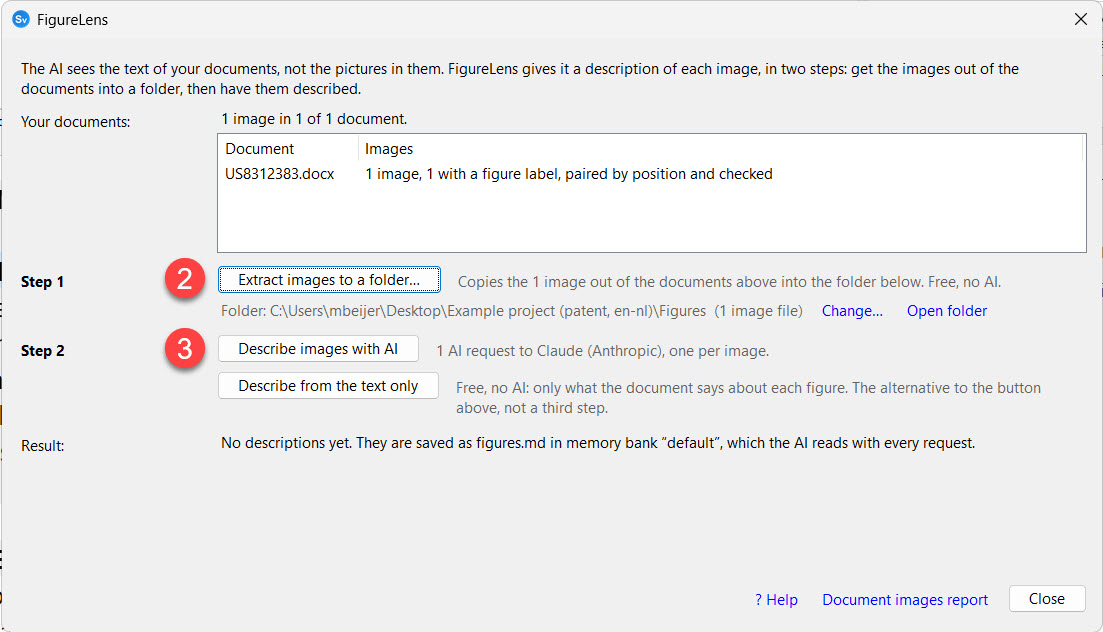
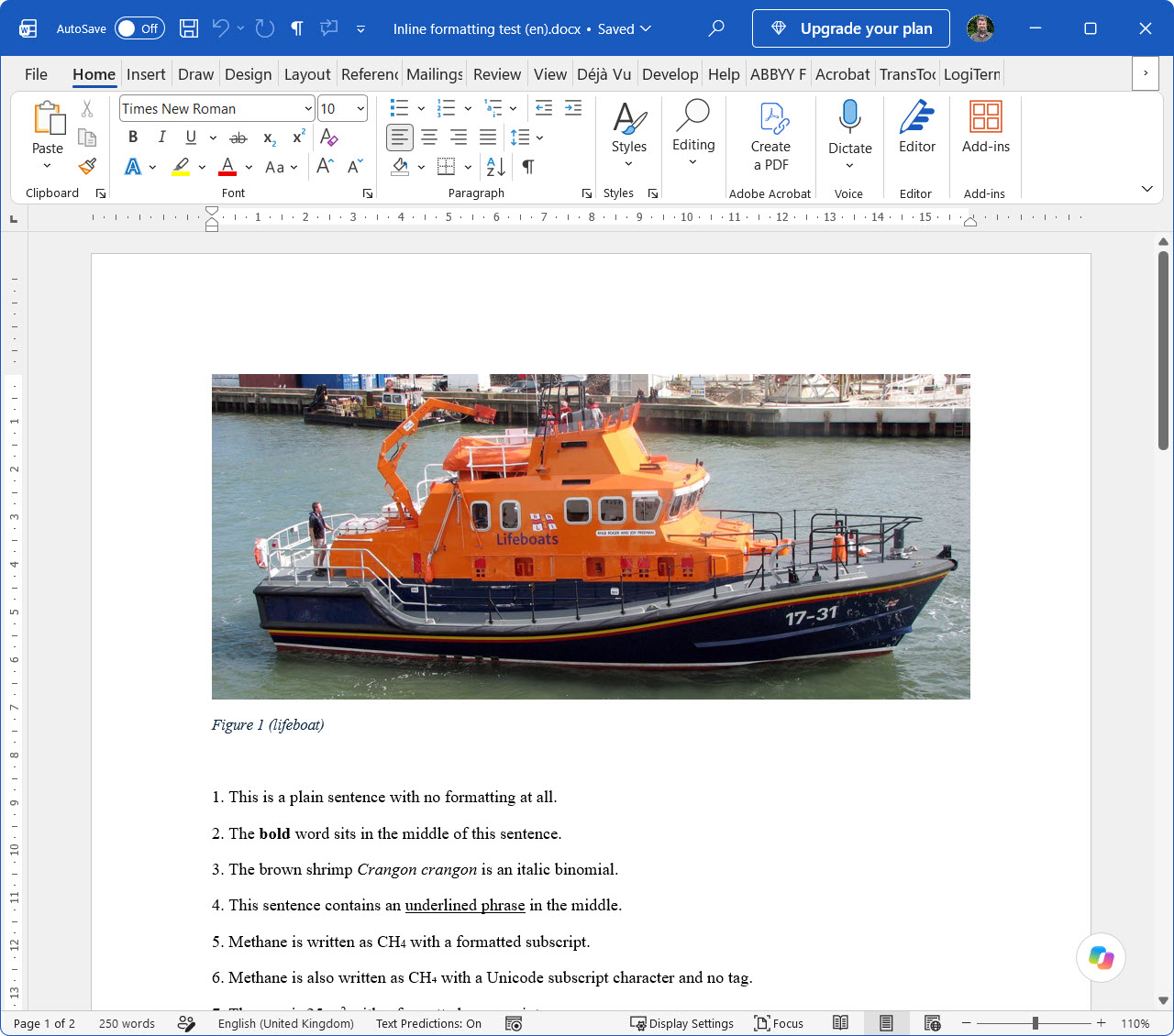
Your documents – a summary line and a two-column table of every Word document in the project, name in one column and what was found in it in the other (the source-language files in Studio’s Files view; reference files are skipped): how many images each holds and how many carry a figure label, the documents with images first, then those with none in grey, then any that could not be read in red. Nothing outside the project is scanned; if the pictures are in a separate document, add it to the project.
Step 1 – Extract images to a folder… The first time, it asks where to put the images; a new, empty folder next to the job is fine, and the choice is remembered for this project. Then it copies the images out of the documents into that folder, named after their figure numbers (Figure 01.png, Figure 02.png…). If more than one document has images, each gets its own sub-folder inside it, so two documents’ Figure 01 cannot overwrite each other. Drawings held as vector images (EMF or WMF, which is what a drawing placed from CAD usually is) are rendered to PNG on the way out, because no AI can read a metafile. Free, no AI. If you already keep the images in a folder of your own, use Already have the images in a folder? Choose it… instead, and later Change… to switch folder or Open folder to look at them.
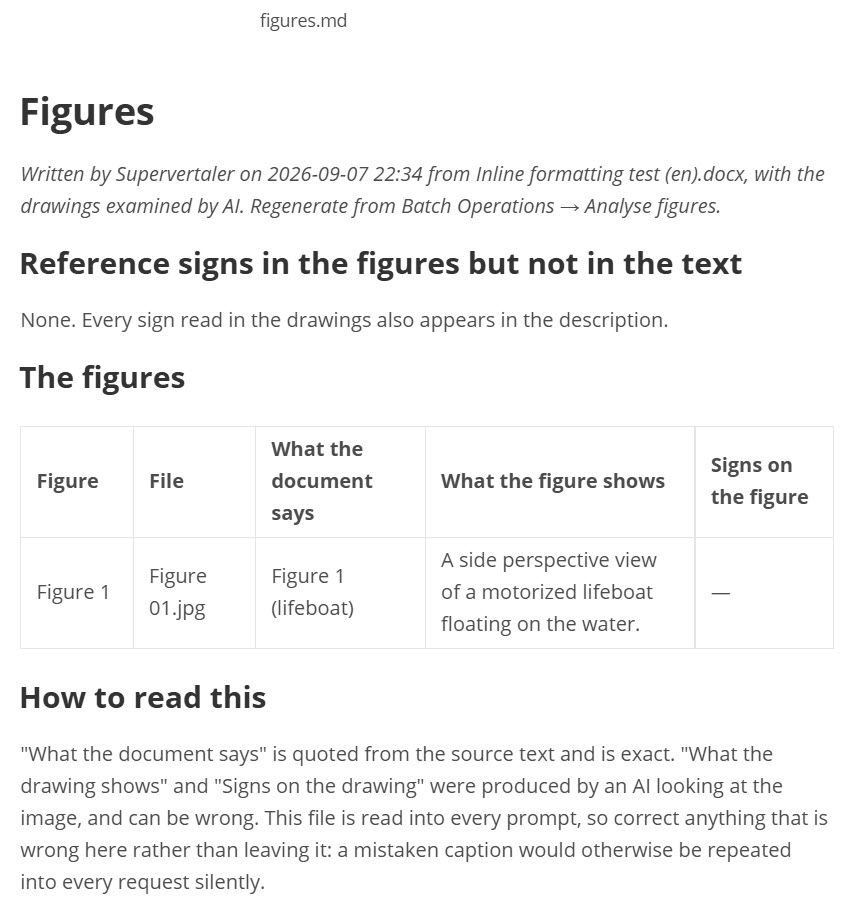
Step 2 – Describe images with AI. Shows each image to the AI together with what the document says about it, and saves a description of each – what it shows, which figure it is, which parts and numbers appear in it – as figures.md in the active memory bank. That file is read by the AI with every request from then on, so it knows what your images mean in this document. Each document gets its own table in the file. One AI request per image; the button says how many and to which provider before you click. It asks before replacing descriptions that already exist. Describe from the text only is the free alternative: only what the document itself says about each figure, without looking at the images. Use one or the other.
Result – whether the descriptions exist yet, when they were saved, how many figures, and whether they came from the AI or from the text alone.
The descriptions are saved in the active memory bank, and that must be a bank of this project’s own: the shared bank is read by every project, so the panel refuses to write there and instead offers Create memory bank “
Buttons that cannot run yet say why: no images in the documents, step 1 not done, or no active memory bank. The Document images report link at the bottom opens the full per-image listing in the Chat tab. Reference numbers stays a separate link above, because it is a check on the text, not part of this pipeline.
AutoPrompt
The Batch Operations tab also includes an AutoPrompt link that uses AI to create a comprehensive, domain-specific translation prompt based on your project’s content, terminology, and TM data.