TermLens
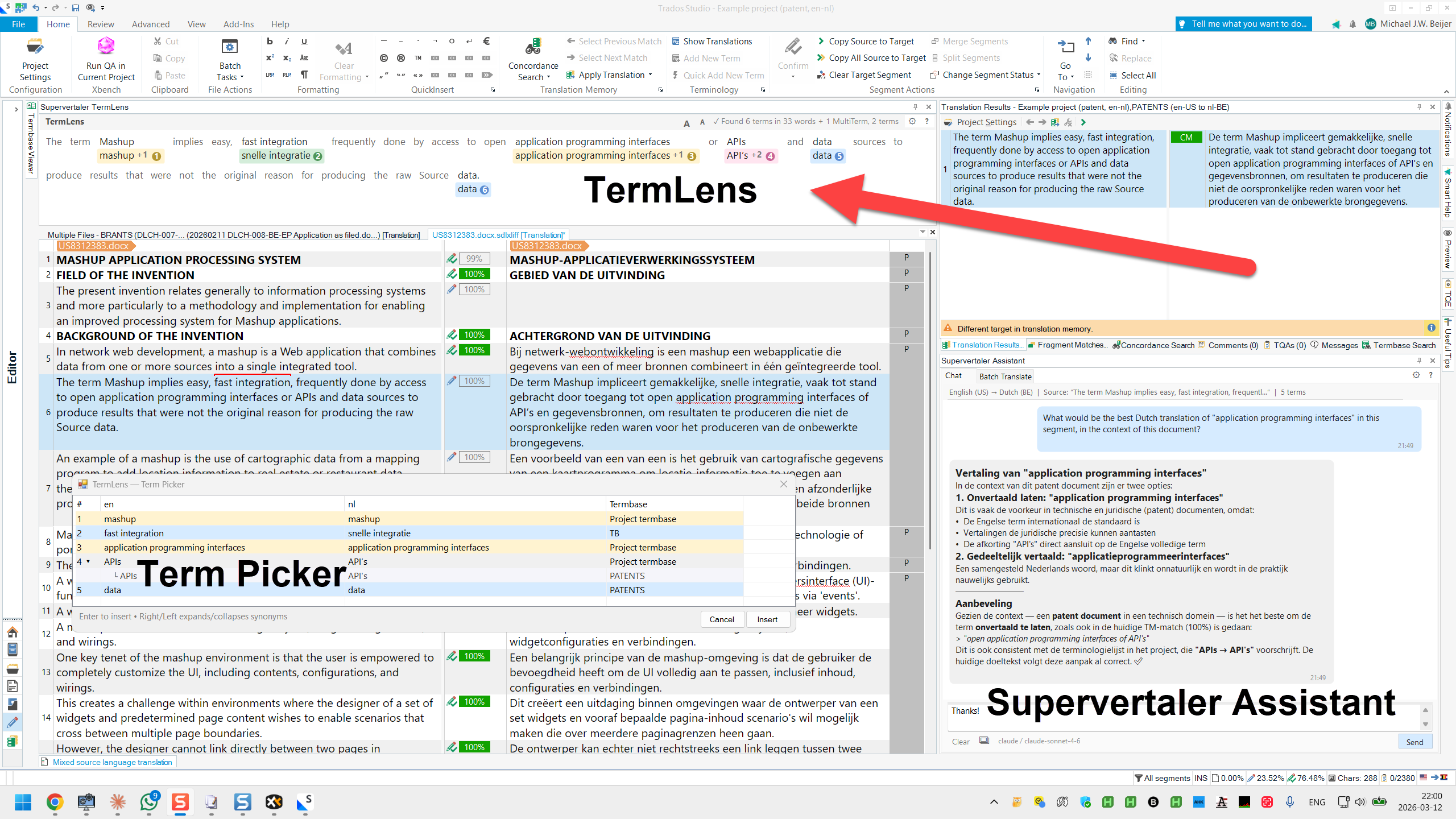
TermLens is an inline terminology display that shows the source text of the current segment word by word, with termbase translations directly underneath each matched term. It updates automatically when you navigate to a new segment.
How It Works
When you select a segment in the Trados editor, TermLens analyses the source text against all active termbases and displays the result in a visual layout:
- Matched words appear with their termbase translation underneath, on a coloured background
- Unmatched words are shown in light grey text so you can read the full source sentence in context
This gives you an at-a-glance overview of every term in the segment that has a termbase entry – without hovering or clicking anything.
Selection tracking
Selecting text in the editor’s source segment highlights the corresponding words in TermLens with a soft yellow band – matched and unmatched words alike. On a long segment this anchors your eye to the part you are actually working on, with the relevant term chips right there. The highlight follows your selection live and clears when you deselect. When the same phrase occurs more than once in a segment, the occurrence nearest your cursor is highlighted.
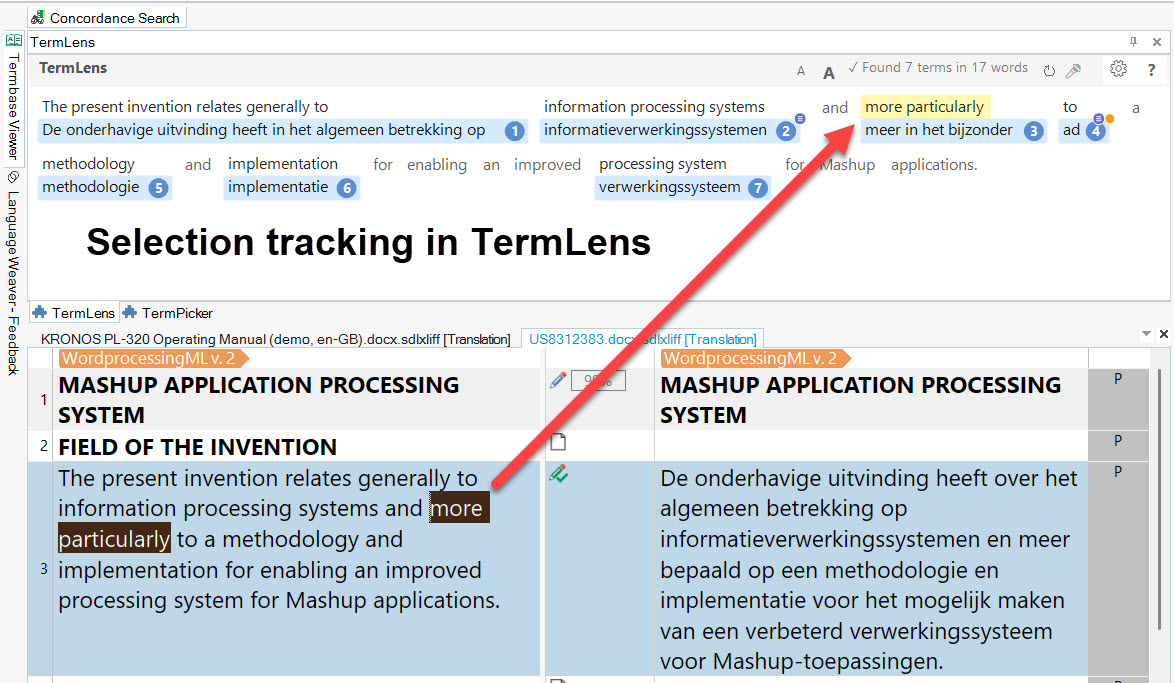
Select text in the source segment and TermLens highlights the same words – your eye lands straight on the relevant term chips.
Selecting text in the target segment works in reverse: the term chips whose translation your selection covers light up, including matches via target synonyms and abbreviations. Only chips can light up from a target selection – the editor provides no word alignment between source and target, so unmatched words have no reliable counterpart to point at. Whichever side you selected last drives the highlight.
.png)
Colour Coding
TermLens uses five background colours to distinguish term types:
| Colour | Meaning |
|---|---|
| Blue | Regular Supervertaler termbase match |
| Purple | Abbreviation match (matched via source abbreviation, not the full term) |
| Pink | Project termbase match (higher priority) |
| Yellow | Non-translatable term (source = target) |
| Green | MultiTerm termbase match (.sdltb) |
Chip Indicators
In addition to colour coding, TermLens shows small indicators in the top-right corner of term chips:
| Indicator | Meaning |
|---|---|
| ≡ (indigo) | The entry has synonyms (source-side, target-side, or both). Hover to see them. |
| ● (amber) | The entry has metadata – a definition, domain, notes, or URL. Hover to see details. |
Both indicators can appear simultaneously. Hover over any term chip to see an interactive popup with full details, including source synonyms (prefixed with “Also:”), target synonyms (shown as bullet points), definitions, domain, notes, and clickable URLs. The popup stays open when you move the mouse into it, so you can click on links.
Markdown Rendering
The Notes and Definition fields in the term popup support Markdown formatting. If the content contains Markdown syntax (tables, bold, italic, headings, bullet lists, code blocks), it is rendered with proper formatting instead of plain text. This is especially useful when AI-generated term notes include structured data like translation tables.
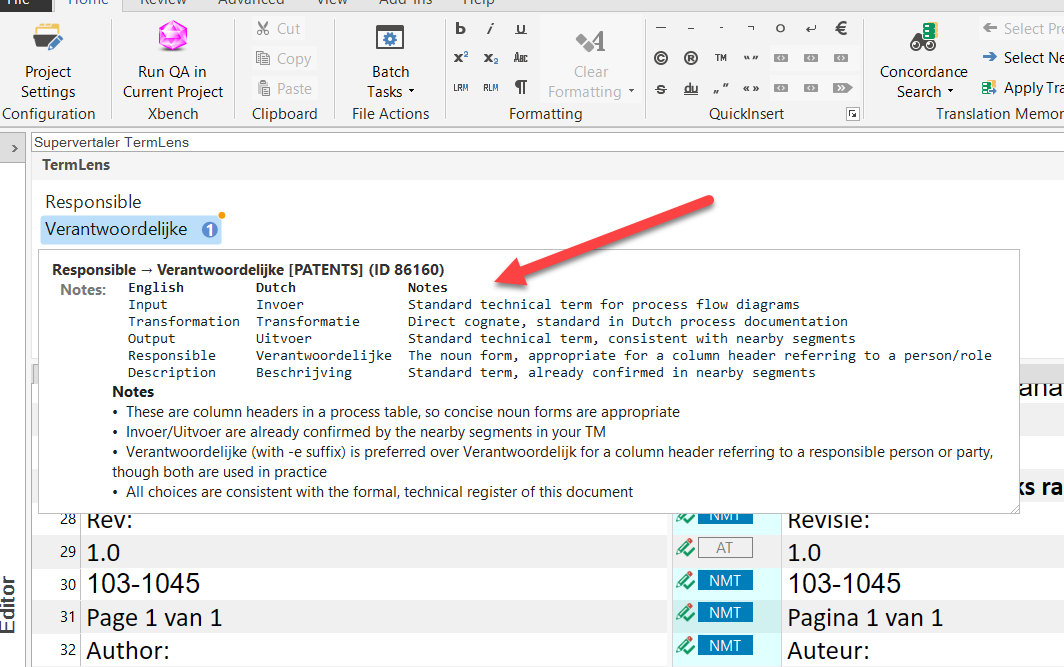
Markdown formatting rendered in TermLens term popup
Resizable Popup
You can resize the term popup by dragging the grip in the bottom-right corner. The width is remembered for the rest of the session, so subsequent popups open at your preferred size.
Inserting Terms
Click to Insert
Click any translation shown under a source word. The translation is inserted at the cursor position in the target field.
Automatic capitalisation
Displayed and inserted terms follow the capitalisation of the source occurrence in the segment, not the capitalisation stored in the termbase. A term stored as “More preferably” shows and inserts as “more preferably” when the segment contains it lower-case mid-sentence; a lower-case stored term is capitalised when the occurrence starts the sentence; and an ALL-CAPS occurrence (a heading, say) upper-cases the whole term. This applies to every insertion path – chip clicks, Alt+digit shortcuts, the TermLens popup and TermPicker.
The rules are deliberately conservative: acronyms and mixed-case terms (MRI, pH) are never altered, and abbreviation matches keep their stored casing. You can switch the behaviour off with Adapt term capitalisation to the segment in TermLens settings.
Keyboard Shortcuts (Alt+1 through Alt+9)
Each matched term in TermLens is assigned a numbered badge. Press Alt+1 to insert the first match, Alt+2 for the second, and so on up to Alt+9.
Shortcuts for Terms 10+
For terms numbered 10 and above, TermLens supports two shortcut styles (configurable in Settings):
- Sequential (default) – type the term number digit by digit:
Alt+14inserts term 14 - Repeated digit – press the same digit key multiple times:
Alt+55inserts term 14 (5th term in the second tier: 9+5)
The badge on each term chip shows exactly which key combination to use. See Keyboard Shortcuts for details on both modes.
TermLens popup (Alt+L)
Press Alt+L to open the TermLens popup – a borderless floating version of this panel for the active segment. Designed for keyboard-only term selection on small screens where keeping the docked panel always-visible costs too much vertical space. Press Alt+L again to close. Inside, Right / Down / Tab cycle the highlighted match, Enter inserts and closes, Escape dismisses without inserting.
TermPicker (Alt+P)
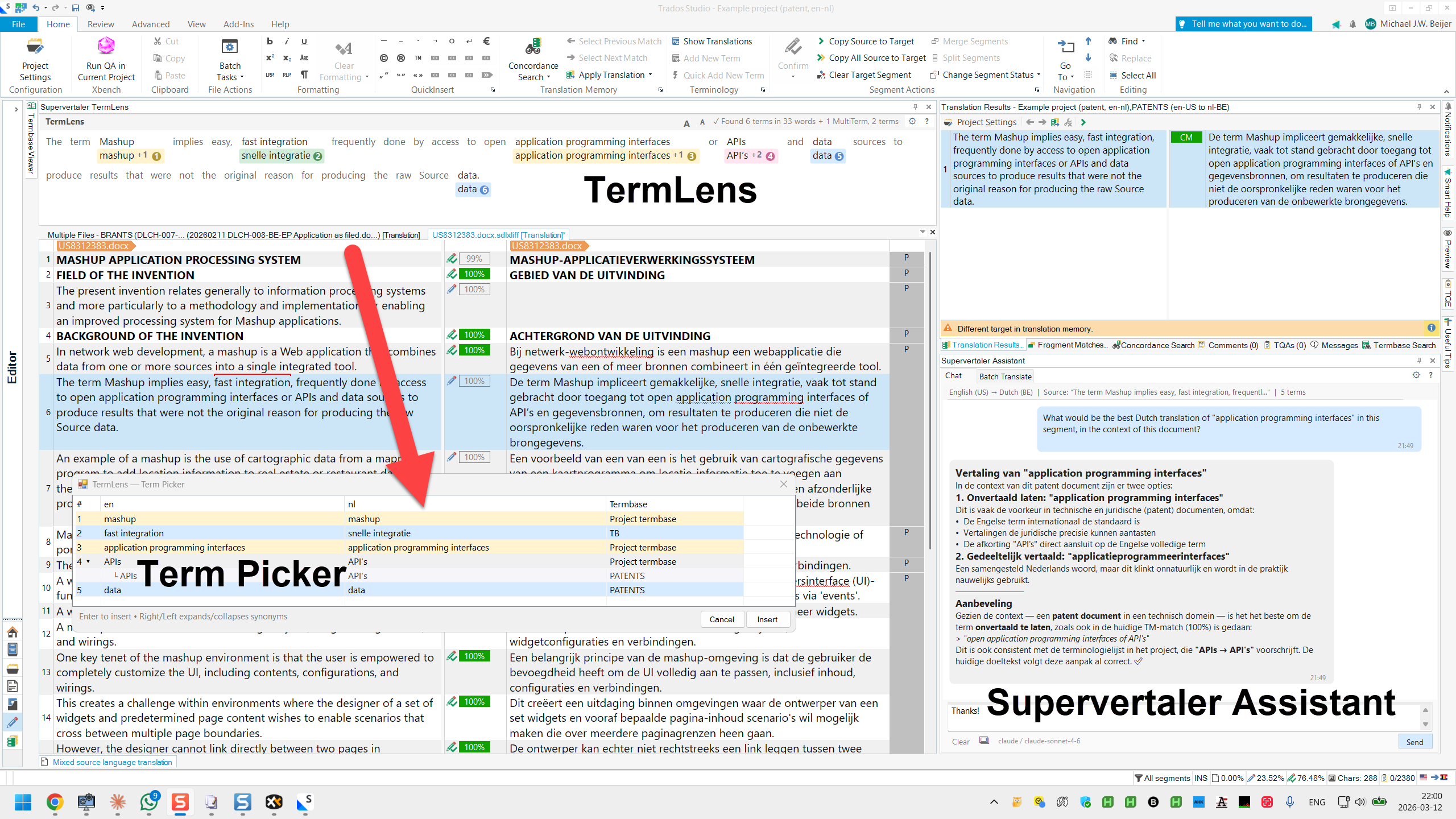
For segments with many matches and when a sortable list view is preferable, press Alt+P to open TermPicker. It shows all matched terms in a list – synonyms expanded – and lets you insert any term with a double-click or Enter. TermPicker is a sibling surface to TermLens: same termbase data, different ergonomics (flat list vs in-context chips).
TermPicker is also available as a dockable pane (Studio’s View tab → TermPicker), so you can keep the list permanently visible instead of the TermLens panel if that suits you better. Both views are available in both placements – docked or as a popup at the cursor.
Right-Click Context Menu
Right-click any term in TermLens to access:
| Action | Description |
|---|---|
| Edit Term | Open the term editor to modify source, target, or metadata |
| Delete Term | Remove the term from the termbase |
| Mark as Non-Translatable | Flag the term so it appears in yellow (source = target) |
| Mark as Translatable | Remove the non-translatable flag (shown when the term is already non-translatable) |
Quick-Add Terms
You can add terms without opening a dialogueue:
| Shortcut | Action |
|---|---|
| Alt+Down | Quick-add the selected text to all write termbases |
| Alt+Up | Quick-add the selected text to the project termbase |
| Ctrl+Alt+T | Open the Add Term Entry dialogue (full editor: definition, domain, notes, URL, synonyms) |
| Ctrl+Alt+N | Quick-add the selected text as a non-translatable term |
Font Size
Use the A+ and A- buttons in the TermLens panel header to increase or decrease the font size. Changes apply immediately.
Tips
- TermLens respects termbase activation –only terms from activated termbases are shown.
- If you have many termbases, designate one as the Project termbase (shown in pink) to make its terms stand out.
- Hover over a term to see an interactive popup with all translations, synonyms, abbreviation pairs, definitions, URLs, and the termbase name. The popup stays open when you move the mouse into it, allowing you to click on URLs.
- A small indigo ≡ indicator appears in the top-right corner of a term chip when the entry has synonyms. An amber dot appears when the entry has metadata (definition, domain, notes, or URL). Both indicators can appear together.
- If a term has an abbreviation (e.g., “GC” for “gaschromatografie”), both the full term and the abbreviation are highlighted when they appear in the same segment. The abbreviation chip shows the abbreviated translation; the full-term chip shows the full translation.