Voice
Voice is Supervertaler’s voice command and dictation engine. It lets you control any application on your computer – Trados, memoQ, Word, or anything else in the foreground – using your voice, while Supervertaler Workbench stays running in the background.
Open it via the 🎤 Voice top tab in Workbench, the tray icon’s Open Voice entry, or press Ctrl+Alt+A to toggle Always-On listening from anywhere on your computer.
Two modes
Always-On listening
Always-On runs a continuous microphone stream in the background. When you speak, Voice detects speech via amplitude-based VAD (voice activity detection), captures the utterance, and hands it to the active recognition engine.
With the Vosk engine (default) the recogniser only emits text for phrases in your command list – anything else is silently dropped as [unk]. So Vosk Always-On is “commands only” by design: you can leave it on all day, talk to colleagues, take phone calls, etc., and only matching command phrases will trigger actions.
With faster-whisper or OpenAI Whisper API every utterance is transcribed in full. If it matches a command the action fires; if not (and “Listen for commands only” is off), the transcribed text is typed into whichever window is in the foreground.
To start: click ▶ Start Always-On in the Voice tab, or press Ctrl+Alt+A from any application. A red mic icon appears in the system tray while Always-On is active.
To stop: click ⏹ Stop Always-On or press Ctrl+Alt+A again.
Focus matters: Voice sends keystrokes and text to whichever window is currently focused. After starting Always-On, click into Trados, Word, or your browser before you speak.
Push-to-Talk (F9 / Ctrl+Shift+Space)
Press F9 (inside the Workbench editor) or Ctrl+Shift+Space (globally, from any application – ⌘⇧Space on macOS) to record a single utterance for free-form running-text dictation. A small ”🎤 Listening…” toast appears in the top-right of the screen so you know the recording is live; it goes away again when you stop. Recording stops when you release the key (in hold-to-talk mode) or when you press the trigger again (in toggle mode). The transcribed text is then typed at the cursor position.
Always-On + push-to-talk coexist. If Always-On is running when you trigger push-to-talk, Voice pauses the always-on listener for the duration of the recording, runs the dictation, then resumes Always-On automatically. So you get free continuous Vosk command recognition all day plus a hotkey for occasional running-text dictation, without having to manually toggle Always-On off and on.
F9 modes (configurable in the Push-to-Talk settings):
- Toggle (default) – press once to start, press again to stop
- Hold-to-talk – hold the key to record, release to stop. Note: this only affects F9. The global Ctrl+Shift+Space hotkey always uses Toggle mode (Windows can’t reliably deliver key-up events across processes for global hotkeys).
Voice commands
Voice commands execute specific actions when you speak a trigger phrase. They can type text, press keyboard shortcuts, run AutoHotkey scripts, or call internal Workbench functions.
The commands table
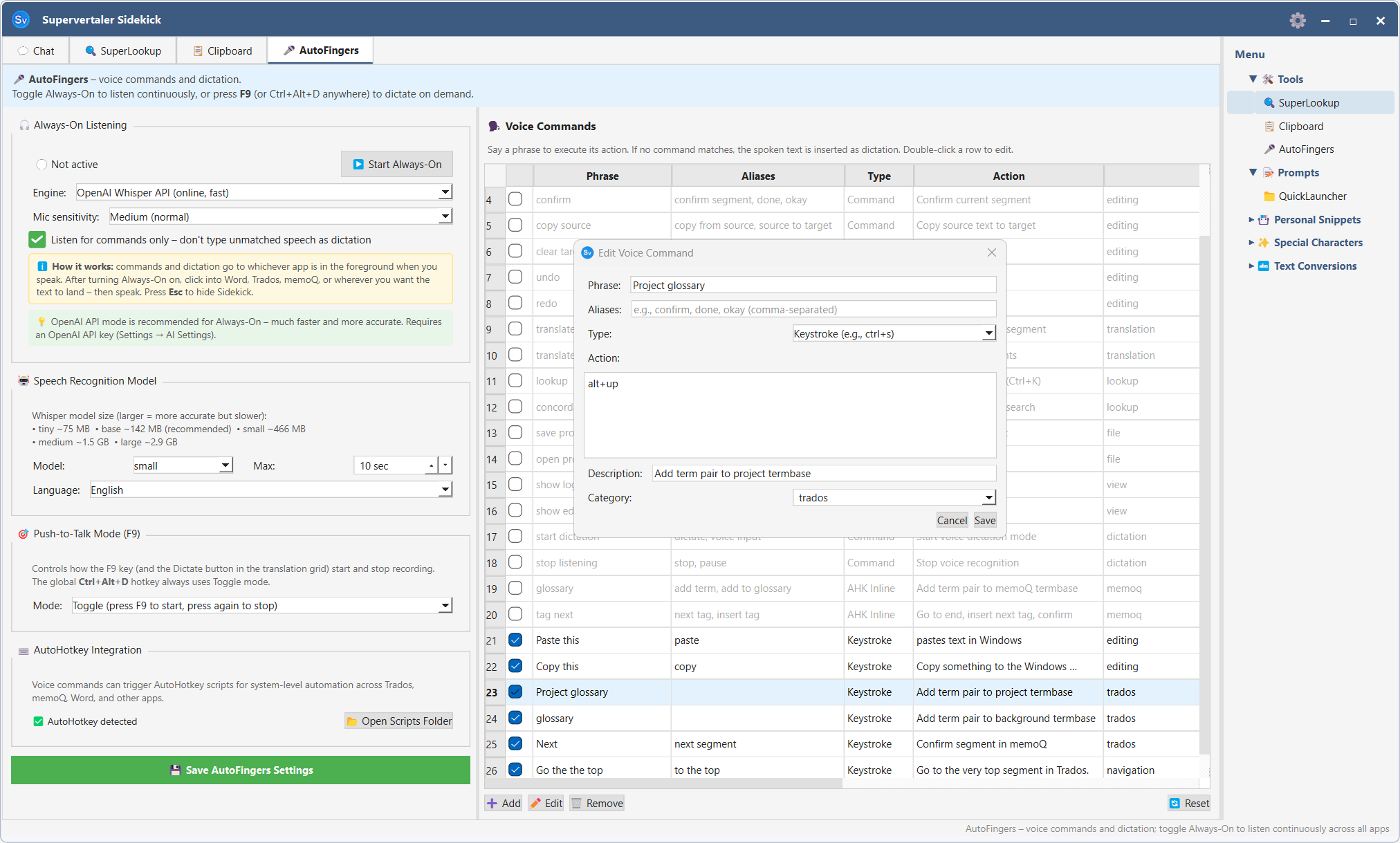
The commands table (right side of the Voice tab) lists all your configured commands.
| Column | Description |
|---|---|
| ☑ | Enable/disable checkbox – uncheck to silence a command without deleting it |
| Phrase | The primary trigger word or phrase |
| Aliases | Alternative phrases that also trigger the command |
| Type | Command / Keystroke / AHK Script / AHK Inline |
| Action | What happens when the phrase is recognised |
| Category | Organisational label (Navigation, Editing, etc.) |
Enabling and disabling commands
- Single command – click the checkbox in the first column
- All commands – click the checkbox column header to toggle all at once (enables any disabled, or disables all if all are already active)
- Multiple commands – select rows with Shift+Click or Ctrl+Click, then right-click and choose ✅ Activate or ⬜ Deactivate
Disabled commands are greyed out and are skipped during recognition. Their settings are preserved.
Editing a command
Double-click any row to open the Edit Voice Command dialog. You can change the phrase, aliases, action type, and action value.
You can also use the Edit button in the toolbar above the table.
Adding a command
Click + Add above the table. Choose a command type:
- Command – calls an internal Workbench action (confirm segment, next segment, etc.)
- Keystroke – sends a key combination to the active window. Click into the Keystroke field and press the keys you want to send (e.g. press Ctrl+Enter); the field shows the platform-native symbols (⌘⇧⌥⌃ on macOS, Ctrl+Shift+Alt elsewhere) so you don’t have to translate between platforms.
- AHK Script – runs an AutoHotkey v2 script file
- AHK Inline – runs a short AutoHotkey v2 snippet directly
The Edit Voice Command dialog includes a context-sensitive cheat sheet below the Action field that updates with the Type dropdown – it explains the press-to-capture editor for Keystroke commands, lists common AHK patterns for AutoHotkey Code, names the available internal actions, etc. So you don’t need to memorise the full reference up front.
Removing a command
Select the row and click Remove, or select multiple rows and remove them together.
Edits take effect immediately under Vosk
When the Always-On engine is Vosk, adding / editing / removing / disabling a command immediately rebuilds Vosk’s recogniser grammar in the background – you don’t have to stop and restart Always-On to “teach” Vosk a new phrase. The status bar briefly shows 🔄 Vosk grammar refreshed (N phrases) to confirm the swap took effect. The next utterance you speak will use the new grammar.
Settings
Always-On engine
The dropdown in the Always-On section picks which speech-recognition backend listens for commands.
| Engine | Best for | Speed | Cost | Internet |
|---|---|---|---|---|
| Vosk (default, recommended) | Commands only – your phrase list, ignores everything else | Instant (~30 ms) | Free | No |
| faster-whisper | Commands + dictation of running text from one continuous mic stream | ~1–3 s | Free | No |
| OpenAI Whisper API | Same as faster-whisper but offloaded to OpenAI’s servers | ~0.5–2 s | $0.006 / minute of audio | Yes (API key) |
Vosk is the default for new installs. It’s purpose-built for fixed-vocabulary command recognition: pass it your active phrase list, and it biases the recogniser toward those phrases while silently dropping anything else as [unk]. That makes it both faster and more accurate for commands than any Whisper variant – and you can leave Always-On running all day for $0 in API fees and near-zero CPU load.
faster-whisper runs the same Whisper models OpenAI ships, but on a CTranslate2 C++ engine – roughly 4× faster than the original openai-whisper package on CPU, with much lower RAM. Choose this if you want continuous dictation of running text in always-on mode (every utterance gets transcribed in full, then either typed if it doesn’t match a command, or fires the matched command).
OpenAI Whisper API sends each utterance to OpenAI’s hosted whisper-1 model. Slightly faster end-to-end than running faster-whisper locally on most laptops, but each minute of audio costs about $0.006 – so leaving it on all day adds up. Requires an OpenAI API key in Settings → AI Settings.
The first time you start Always-On with Vosk, the small English model (~40 MB) auto-downloads to <data folder>/vosk-models/. Same for the small Dutch model when your project’s target language is Dutch. Models are cached forever after the first download.
Push-to-talk dictation engine
The Dictation engine dropdown in the Push-to-Talk Mode group controls what handles F9 / Ctrl+Shift+Space when you trigger push-to-talk dictation. This is independent of the Always-On engine, because the two paths have different needs:
| Setting | What runs when you press Ctrl+Shift+Space / F9 |
|---|---|
| Same as Always-On (default) | Auto-routes: Vosk or faster-whisper Always-On → faster-whisper push-to-talk; OpenAI API Always-On → OpenAI API push-to-talk |
| faster-whisper (offline) | Always faster-whisper, regardless of Always-On engine |
| OpenAI Whisper API (online, fast) | Always the API, regardless of Always-On engine. Useful pairing: Vosk for free continuous commands + OpenAI API for fast running-text dictation. |
The “ℹ️ Push-to-talk will use: …” indicator below the dropdown shows the resolved engine (after auto-routing) so you always know which backend will run.
Why isn’t Vosk an option here? Vosk’s grammar mode is built for fixed phrases, not free-form transcription. Pressing Ctrl+Shift+Space produces running text, which Whisper handles vastly better. So push-to-talk silently falls through to a Whisper engine even when Always-On is set to Vosk.
faster-whisper model
The Whisper model size dropdown applies whenever a Whisper engine is active – that’s faster-whisper for either Always-On or push-to-talk, or the OpenAI API. (The API ignores this setting and always uses whisper-1 server-side.) Larger models are more accurate but slower and need more RAM.
| Model | Download size | Notes |
|---|---|---|
| tiny | ~75 MB | Very fast, lowest accuracy |
| base | ~142 MB | Good balance (recommended) |
| small | ~466 MB | Noticeably better accuracy |
| medium | ~1.5 GB | High accuracy |
| large | ~2.9 GB | Best accuracy, slow on CPU |
Mic sensitivity
Controls the amplitude threshold used to detect speech onset.
- Low (noisy) – raises the threshold; ignores quiet background sounds but may miss soft speech
- Medium (normal) – default; works well in a typical home office
- High (quiet) – lowers the threshold; captures quiet voices but may trigger on background noise
Listen for commands only
Whisper engines only. The checkbox is hidden when the Always-On engine is Vosk, because Vosk’s grammar mode already drops non-command speech at the recogniser level – the setting would be a structural no-op there.
For faster-whisper and the OpenAI Whisper API: when checked, Always-On fires voice commands but discards any speech that doesn’t match a command – it is not typed. Use this if you only want voice control with a Whisper engine, not dictation. When unchecked, unmatched speech is transcribed and typed at the cursor position.
Maximum recording duration
Sets the upper limit (in seconds) for a single voice clip. Speech that exceeds this length is cut and transcribed up to the limit. Useful to prevent long silences from being held open indefinitely.
Language
- Auto – uses the project’s target language as the transcription hint
- Explicit language – forces Whisper to transcribe in the selected language, which improves accuracy when the target language differs from the source
AutoHotkey integration
AutoHotkey v2 must be installed for AHK-type commands to work. Supervertaler checks for it automatically and shows the path in the AutoHotkey section of the Voice settings panel.
To verify: the status line shows either the AHK path (green) or “AutoHotkey v2 not found” (orange).
Click Open scripts folder to open the folder where standalone AHK script files are stored.
Using Voice with Trados Studio
Voice sends input at the Win32 hardware-input level (equivalent to physical keystrokes), which is fully compatible with Trados Studio’s WPF editor. Useful commands to add:
| Phrase | Type | Action |
|---|---|---|
| ”confirm segment” | Keystroke | ctrl+enter |
| ”next segment” | Keystroke | alt+down |
| ”previous segment” | Keystroke | alt+up |
| ”go to top” | Keystroke | ctrl+home |
| ”undo” | Keystroke | ctrl+z |
After creating a command, start Always-On, click into Trados Studio, and speak the phrase.
Global hotkeys
| Shortcut | Action |
|---|---|
| Ctrl+Alt+A (⌘⌥A on macOS) | Toggle Always-On listening |
| Ctrl+Shift+Space (⌘⇧Space on macOS) | Push-to-talk (one utterance) |
| F9 | Push-to-talk (inside Workbench editor) |
Global hotkeys work on macOS too (via the NSEvent monitor), but require Accessibility permission for whichever binary launched Python – see Keyboard Shortcuts for setup. All hotkeys can be customised in Settings → Keyboard Shortcuts.