Term Picker
The Term Picker is a compact overlay that shows all matched terms for the current segment in a sortable, keyboard-navigable list. It is useful when TermLens shows many matches and you want a quick overview without scrolling.
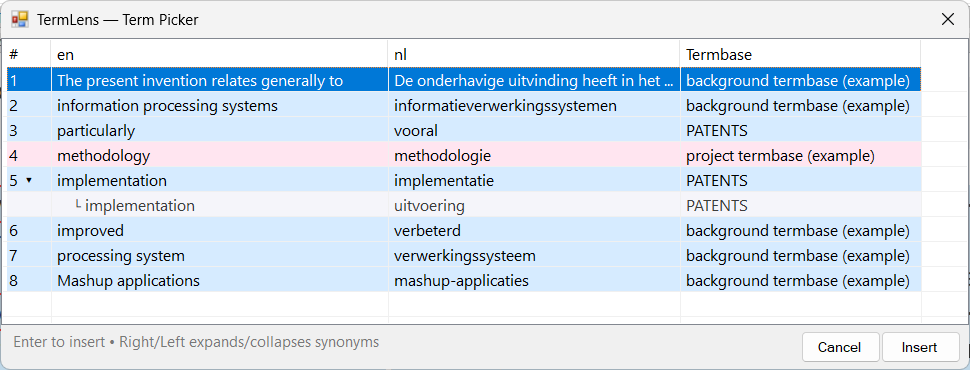
Term Picker dialogue with all matched terms for the current segment
Opening the Term Picker
Press Ctrl+Shift+P to open the Term Picker. It appears as a floating window above the editor.
Colour-coded rows
Each row in the Term Picker is colour-coded by termbase type:
| Colour | Meaning |
|---|---|
| Pink | Project termbase term |
| Blue | Regular Supervertaler termbase term |
| Yellow | Non-translatable term |
| Green | MultiTerm termbase term (.sdltb) |
This lets you instantly see where each term comes from and how it should be handled.
Expandable synonyms
Terms with multiple translations display a right-arrow indicator (▸) next to the term. To expand and see all synonym sub-rows:
- Select the row and press the Right arrow key
- The sub-rows appear below the parent term, showing each available translation
Press Left arrow to collapse the synonyms again.
Keyboard navigation
The Term Picker is designed for fast keyboard use:
| Key | Action |
|---|---|
| 0-9 | Type a number to jump directly to that term |
| Enter | Insert the selected term and close the picker |
| Escape | Close the picker without inserting |
| Up / Down | Navigate between terms (wraps around) |
| Right | Expand synonyms for the selected term |
| Left | Collapse synonyms |
Navigation wraps around: pressing Down on the last term jumps to the first, and Up on the first jumps to the last.
Inserting a term
You can insert a term in two ways:
- Click any row to insert that term at the cursor position in the target field
- Press Enter on the selected row to insert and close
The selected translation is placed at the current cursor position in the target segment.